
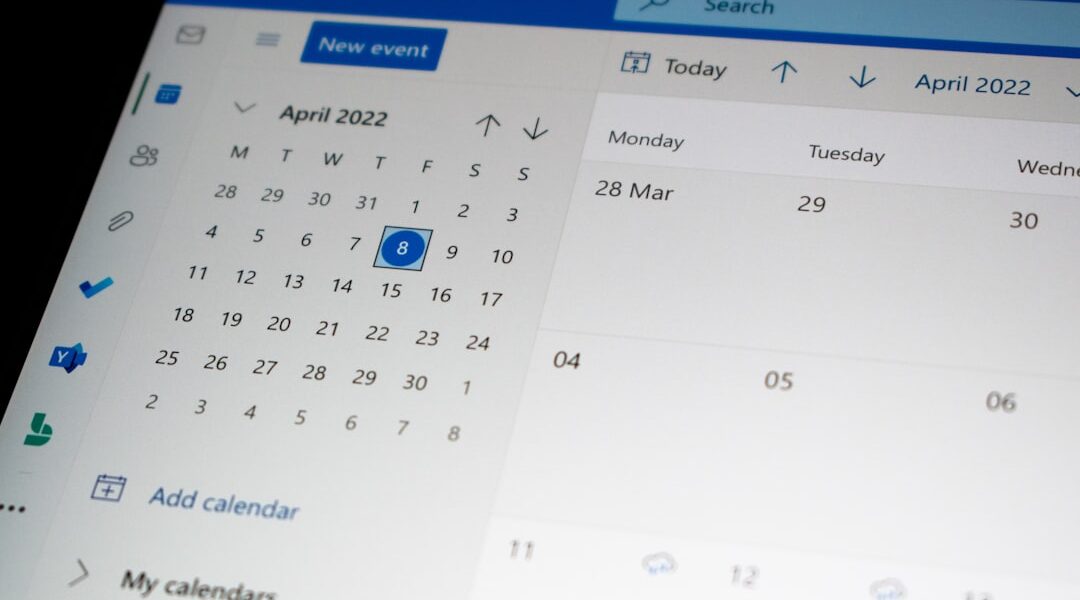
Fruitask Calendar: Your All-in-One Scheduling Solution
Welcome to the world of efficient scheduling with the Fruitask Calendar, a full-featured calendar designed to enhance your workspace dynamics. Whether it’s for events, meetings, reminders, or public bookings, the Fruitask Calendar provides a seamless experience that enables you to manage your time effectively and collaborate with your team effortlessly.
Overview
The Fruitask Calendar allows you to create and manage events with ease. With day, week, and month views at your disposal, planning your schedule has never been easier. You can set up one-off or recurring events, attach reminders, invite attendees, host online meetings, and even accept public bookings from clients or colleagues outside your workspace. Additionally, you have control over privacy settings, enabling you to choose whether calendars remain private, are shared with collaborators, or connected to external calendars.
Key Capabilities
Events
- Create events complete with a title, description, location, date/time, and color.
- Designate events as all-day or specify start and end times for timed events.
- Add an image cover (optional): Upload or link to up to three images, GIFs, or videos to enhance event visibility, with each file limited to 50 MB.
- Use categories for grouping and color-coding events (such as Meeting or Personal), even integrating categories shared from other calendars.
- Set visibility options: public, private, or busy.
- Link an event to a Fruitask Note for added context.
Recurrence
- Schedule events to repeat daily, weekly, monthly, or yearly, with the possibility of customizing the interval (e.g., every two weeks).
- Weekly events can focus on specific days of the week.
- Terminate an event series on a specified date or after a designated number of occurrences.
- Ability to cancel or reinstate a single occurrence without disrupting the entire series.
Reminders & Attendees
- Set reminders to notify you minutes before an event, delivered through a notification, an email, or both.
- Invite attendees via email or select from workspace collaborators; attendees can respond with Accepted, Declined, or Tentative options. The organizer is tracked automatically.
Online Meetings
- Enable the online meeting feature on an event to auto-generate a Fruitask Meet link, or you can attach a link from other providers such as Google Meet, Zoom, Teams, or a custom URL.
Public Booking
- Transform your calendar into a public booking page, allowing individuals to self-schedule into available time slots with customizable options like available hours, buffer time between bookings, daily booking limits, and weekend rules.
- Collect booker details and custom intake questions; all bookings appear as events you can confirm, cancel, or complete.
Sharing & Sync
- Share calendars with collaborators as Viewer, Editor, or Admin, enhancing team collaboration.
- Import events from an .ics/iCalendar file to easily integrate your existing calendar events.
- Optionally connect to your Google Calendar for seamless syncing of events.
- Be timezone-aware: events are stored with a timezone, ensuring that times display correctly across different regions.
Where to Find It
Access the Calendar feature from the main workspace navigation. Use the view switcher to toggle between Day, Week, and Month views. You can create a new event by clicking on a time slot or using the “New event” action. To view or edit any existing event, simply click on it.
Requirements & Access
To utilize the Fruitask Calendar:
- You must be signed in to your account and a member of the workspace that owns the calendar.
- Creating or editing events requires Editor or Admin access to that specific calendar, while Viewers can only see events without edit capabilities.
- Public booking pages and shared calendars are accessible to outside guests via their unique links.
Limits & Notes
- For cover media, you are allowed up to 4 files per event, each with a maximum size of 50 MB; only images, GIFs, and videos are accepted.
- Cover files are stored within your Fruitask account storage.
- Ensure an event’s end time is always after the start time for proper scheduling.
- Reminder emails necessitate that email delivery is configured for your calendar/workspace.
Tips for Maximizing Your Calendar Usage
- Enhance your calendar’s scannability with categories and colors for a quick overview, especially during busy periods.
- Use an eye-catching cover image for important events, such as launches or webinars, so they stand out on your calendar.
- For client meetings, consider publishing a booking page rather than engaging in time-consuming email exchanges.
Embrace the power of scheduling with Fruitask Calendar and streamline your workflow today!
